Nintendo DS Bottom Screen Replacement Complete Guide
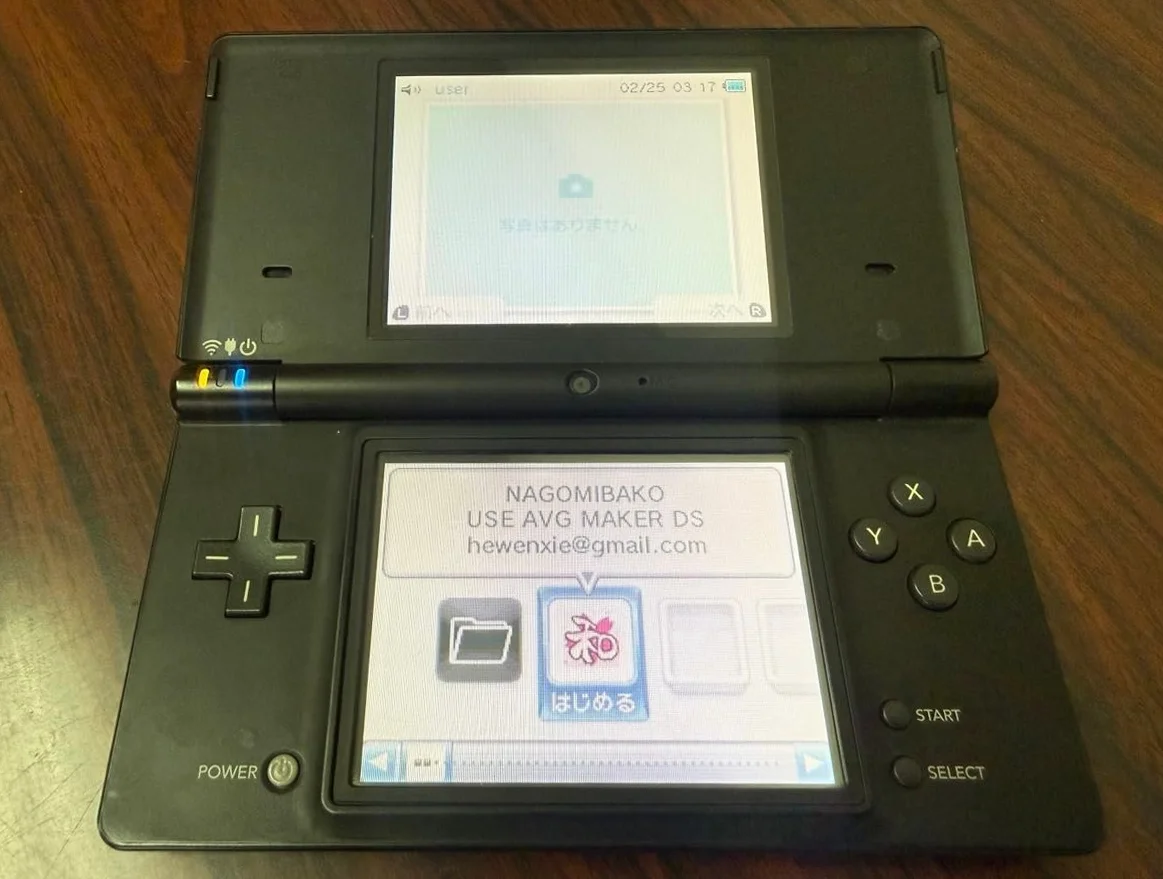
From a 20-year veteran technician in Akihabara
Your Nintendo DS bottom screen (touchscreen) is unresponsive, not registering touches, or has cracks/dead pixels. Your dog in Nintendogs ignores you, you can't tap answers in Brain Age. Worst case: the screen is completely shattered, ruining your gaming experience.
Required Tools
Standard Akihabara repair shop setup:
- Precision screwdriver set: Japanese-made YATO YT-6991, includes PH00 cross-head screwdriver
- Plastic spudger set: Various sizes for prying
- Tweezers: Curved and straight tips
- Isopropyl alcohol: 99% purity for cleaning screen and frame
- Cotton swabs: For cleaning small areas
- New bottom screen: OEM pull or compatible replacement
- Double-sided tape: 0.3mm thickness for screen mounting
- Heat gun or hair dryer: For softening old adhesive (optional)
- Multimeter: For checking ribbon cable connections
- Magnifying lamp: For seeing ribbon cable connections clearly
- Anti-static gloves: To protect LCD and touchscreen
- Screen protector: To protect new screen after installation
- Suction cup: For removing old screen
Detailed Repair Steps
After 20 years of fixing Nintendo handhelds in Akihabara, I've refined this method. Follow carefully, don't rush.
Step 1: Safe Disassembly
The biggest risk during disassembly is damaging the hinge or ribbon cables. Take it slow:
- Remove battery and game card:
- Power off first, remove battery
-
Remove game cartridge
-
Remove back cover screws:
- Remove 6 cross-head screws from back cover
-
Note different screw lengths, mark them
-
Separate back cover:
- Use plastic spudger to gently pry open back cover from edges
-
Be careful with clip locations, don't force it
-
Disconnect battery:
- Use plastic tool to disconnect battery connector
- Ensure complete power disconnection
Step 2: Internal Disassembly
Be extra careful once inside:
- Remove motherboard mounting screws:
- Remove 4 screws securing motherboard
-
Note screw positions, take photos
-
Remove motherboard:
- Gently lift motherboard
-
Disconnect all ribbon cables:
- Bottom screen ribbon (be most careful)
- Top screen ribbon
- Button ribbon
- Power ribbon
-
Remove old bottom screen:
- Nintendo DS bottom screen is secured with double-sided tape
- Use heat gun on low setting (80°C) to soften adhesive around edges
- Use suction cup to gently lift screen
- Use plastic spudger to assist separation
Step 3: Frame Cleaning
Thorough cleaning before installing new screen:
- Remove old adhesive:
- Use isopropyl alcohol to clean old double-sided tape from frame
-
Ensure frame is clean and flat
-
Inspect frame:
- Check screen frame for damage
-
Check ribbon cable connector for oxidation
-
Prepare new double-sided tape:
- Cut double-sided tape to appropriate size
- Apply around screen frame perimeter
- Leave space for ribbon cable
Step 4: New Screen Installation
Most critical step:
- Inspect new screen:
- Check screen for damage
- Test screen if possible
-
Check touch functionality
-
Screen alignment:
- Place new screen into frame
- Align all edges
-
Ensure completely flat
-
Connect ribbon cable:
- Connect screen ribbon cable to motherboard
- Align connector, insert gently
-
Secure ribbon cable latch
-
Secure screen:
- Gently press around screen edges
- Ensure double-sided tape fully adheres
- Check for air bubbles
Step 5: Initial Testing
Test immediately after installation:
- Connect battery for testing:
- Don't reassemble yet, connect battery directly
- Power on to test screen display
-
Test touch functionality
-
Display testing:
- Test all-white screen
- Test all-black screen
-
Test game graphics
-
Touch testing:
- Test touch accuracy
- Test multi-touch (if supported)
- Test edge touch
Step 6: Final Assembly
After successful testing:
- Install motherboard:
- Connect all ribbon cables
-
Secure motherboard screws
-
Install back cover:
- Align all clips
-
Install back cover screws
-
Final testing:
- Power on display test
- Touch function test
- Game operation test
- Extended operation test (30 minutes)
Key Specifications Comparison
| Parameter | OEM Specification | Alternative | Japan Market Price (Feb 2026) |
|---|---|---|---|
| OEM Bottom Screen | Sharp or AUO | Pulled from stock | ¥3,000-5,000 |
| Compatible Screen | Chinese-made | Various brands | ¥2,000-3,500 |
| Touchscreen Assembly | With touch function | LCD only | ¥1,500-2,500 |
| Screen Protector | High-transparency film | Anti-glare film | ¥500-1,000 |
| Double-sided Tape | 3M VHB tape | Other brands | ¥500-1,000/roll |
| Complete Replacement | Includes screen and labor | Akihabara shops | ¥5,000-8,000 |
Veteran Technician's Advice
After 20 years in Akihabara, here are answers to common questions:
Why do Nintendo DS bottom screens fail easily?
Three main reasons. First is usage frequency - the bottom screen is a touchscreen tapped thousands of times daily. Second is design - the screen is exposed without protection. Third is material - touchscreens are more fragile than regular LCDs.
What's the difference between OEM and compatible screens?
Significant differences. OEM screens: - High touch accuracy, fast response - Excellent display quality, accurate colors - Stable quality, long lifespan - But expensive and hard to find
Compatible screens: - Cheaper price - Easier to purchase - But touch may be less accurate - Display quality may be inferior - May have input lag
Can I replace just the LCD without the touchscreen?
Yes, but depends on damage. If only LCD is bad but touch works, you can replace just LCD. But usually recommend replacing both since disassembly is tedious and old touchscreen may fail soon.
How to protect the new screen?
I recommend applying screen protector immediately. Avoid using sharp objects on screen. Clean regularly with proper cleaning cloth. Store with lid closed, avoid placing heavy objects on top.
Repair Difficulty
Technical difficulty: ★★★★☆ (requires careful operation)
Tool requirements: ★★★☆☆ (basic tools sufficient)
Time cost: 2-3 hours (longer for first attempt)
Success rate: High, over 90%
My Ultimate Advice
From 20 years in Akihabara, here are my key lessons:
- Test before installation - confirm screen works before assembly
- Be careful with ribbon cables - they're the most fragile part
- Clean thoroughly - dust affects touch sensitivity
- Align accurately - misalignment is hard to fix later
- Test comprehensively - both display and touch functions
Final thoughts. The Nintendo DS bottom screen is the soul of this device. Without a responsive touchscreen, even the best games are unplayable. Many customers bring their DS for screen replacement to continue playing classic games. That DS that accompanied them through countless hours gets a new screen and continues the adventure.
Remember, you're not just fixing a screen - you're restoring the tactile feel of gaming. Take your time, you can do it.
References iFixit Nintendo DS Bottom LCD Screen Replacement: https://zh.ifixit.com/Guide/Nintendo+DS+Bottom+LCD+Screen+Replacement/1304 Japanese Nintendo Repair Community Akihabara Retro Game Shop Technical Sharing Sharp LCD Datasheet