Nintendo Entertainment System 72-Pin Connector Replacement - Complete Guide
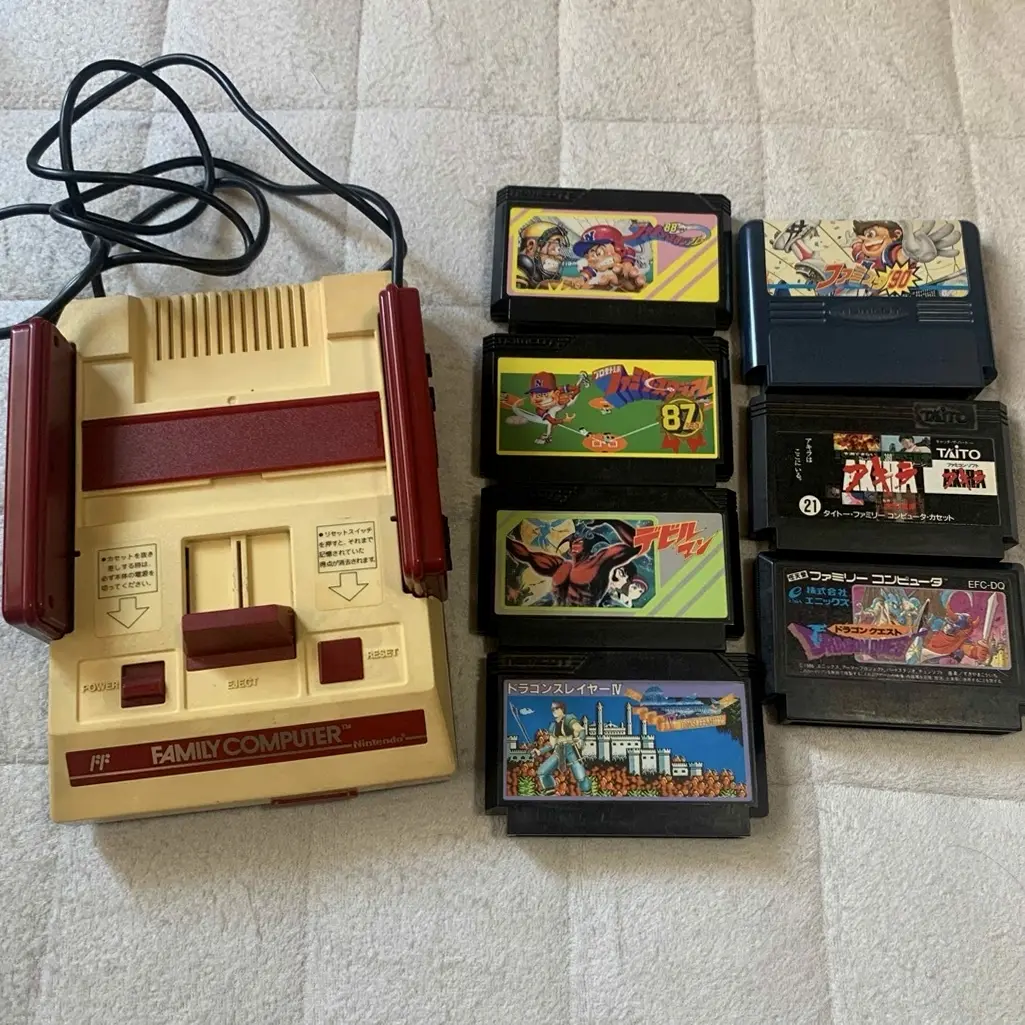
From a 20-year veteran technician in Akihabara
Your NES won't read cartridges without jiggling them 50 times, or you get flashing screens, graphical glitches. Playing Super Mario Bros. and it freezes mid-level, The Legend of Zelda save files vanishing. That ritual of blowing into cartridges? I get it—nostalgic but completely ineffective.
Tools You'll Need
Here's the standard kit from an Akihabara repair shop:
- Precision screwdriver set: Japanese-made YATO YT-6991, PH1 crosshead driver required
- Plastic spudger: For prying open the NES shell
- Tweezers: For removing the old connector
- Isopropyl alcohol: 99% purity, for cleaning boards and connectors
- Cotton swabs: For detailed cleaning
- New 72-pin connector: OEM or compatible replacement
- Soldering iron: Hakko FX-888D, set to 350°C
- Solder: Senju lead-free solder, 0.8mm diameter
- Desoldering pump/braid: For cleaning pads
- Multimeter: Testing continuity
- Magnifying lamp: For inspecting solder joints
- Anti-static gloves: Protecting the motherboard
- NES test cartridge: For functionality checks
Step-by-Step Repair Guide
20 years fixing Nintendo consoles in Akihabara taught me this method. Follow carefully, no rushing.
Step 1: Safe Disassembly
NES teardown is straightforward but requires care:
- Complete power down:
- Unplug power and AV cables
- Remove all cartridges
-
Ensure complete power isolation
-
Remove case screws:
- 6 crosshead screws on the bottom
- Note: All screws are same length
-
Use PH1 screwdriver
-
Separate the shell:
- Gently lift the top cover
- Watch for internal ribbon cables
- No forceful pulling
Step 2: 72-Pin Connector Diagnosis
Once open, inspect the connector:
- Visual inspection:
- Check for oxidation (blackened pins)
- Look for bent or broken pins
-
Inspect solder joints for cracks
-
Functional testing:
- Insert test cartridge
- Observe reading consistency
-
Test multiple cartridges
-
Problem identification:
- No read at all: Multiple oxidized pins
- Requires jiggling: Weak pin spring tension
- Flashing/glitchy screen: Intermittent contact
- Specific games fail: Pin-specific issues
Step 3: Old Connector Removal
Carefully remove the old connector:
- Disconnect internal wiring:
- Unplug motherboard from power board
- Disconnect RF board connections
-
Note ribbon cable orientation
-
Remove motherboard:
- Remove 4 motherboard mounting screws
- Gently extract the motherboard
-
Place on anti-static mat
-
Desolder old connector:
- 72 pins = 72 solder joints
- Use desoldering pump for each joint
- Gently lift connector with tweezers
Step 4: Pad Preparation
Thorough cleaning before installing new connector:
- Clean solder pads:
- Use desoldering braid on all pads
- Ensure pads are clean and flat
-
Check for pad damage
-
Inspect motherboard:
- Examine circuits around pads
- Look for corrosion traces
-
Check for broken traces
-
Prepare new connector:
- Verify pin alignment
- Check pin spacing consistency
- Test pin spring tension
Step 5: New Connector Installation
Precision alignment is critical:
- Connector alignment:
- Position new connector
- Align all 72 pins with pads
-
Ensure perfect flatness
-
Temporary fixation:
- Solder four corner pins first
- Verify positioning
-
Adjust if necessary
-
Complete soldering:
- Work from one side to the other
- Create smooth, rounded joints
- Avoid bridges or cold joints
Step 6: Cleaning and Inspection
Post-soldering cleanup:
- Clean solder joints:
- Use isopropyl alcohol on all joints
- Remove flux residue
-
Check for solder bridges
-
Pin inspection:
- Examine all 72 pins
- Verify pin straightness
-
Test spring tension
-
Continuity testing:
- Multimeter test each pin
- Verify pin-to-pad connection
- Check for shorts between adjacent pins
Step 7: Functional Testing
Comprehensive post-repair testing:
- Basic testing:
- Connect power and video
- Insert test cartridge
-
Check boot screen
-
Reading tests:
- Test multiple game cartridges
- Test repeated insertion/removal
-
Test extended operation
-
Stability testing:
- Run continuously for 2 hours
- Monitor temperature
- Check graphical stability
Step 8: Preventive Maintenance
Keep it working after repair:
- Cartridge maintenance:
- Regular edge connector cleaning
- Use dedicated cleaning cartridges
-
Prevent dust ingress
-
Connector maintenance:
- Monthly connector cleaning
- Use proper cleaning solutions
-
Prevent oxidation
-
Usage habits:
- Insert/remove cartridges vertically
- Avoid excessive force
- Regular use maintains pin tension
Technical Specifications Comparison
| Parameter | OEM Specification | Alternative | Japan Market Price (Feb 2026) |
|---|---|---|---|
| OEM 72-pin connector | Nintendo original | Salvaged parts | ¥3,000-4,500 |
| Compatible connector | Chinese manufacture | Various brands | ¥1,500-2,500 |
| Pin count | 72 pins | Same spec | - |
| Pin plating | Gold-plated | Tin or nickel-plated | - |
| Connector lifespan | 10,000 insertions | 5,000-8,000 insertions | - |
| Full replacement service | Connector + labor | Akihabara shops | ¥5,000-7,000 |
Veteran Technician Q&A
20 years in Akihabara, these are the questions I get asked most:
Why do NES 72-pin connectors fail so often?
Three main reasons. First, design flaw—the ZIF mechanism causes pin bending. Second, oxidation—40 years takes its toll on metal. Third, usage habits—repeated insertion and blowing accelerate damage.
Does blowing into cartridges actually help?
No, it's harmful. Blowing introduces saliva, accelerating oxidation. Proper method: isopropyl alcohol and cotton swabs. The blowing ritual is an '80s urban legend—time to retire it.
Can I just clean instead of replace?
Mild oxidation can be cleaned. Use isopropyl alcohol thoroughly, gently rub edge connectors with an eraser. But if pins are bent or lack spring tension, replacement is mandatory.
How to extend new connector life?
I recommend cartridge dust covers. Regular connector cleaning. Minimize insertion/removal cycles. Use dust covers when stored. Use quality cartridges.
Repair Difficulty
Technical skill: ★★★★☆ (requires soldering expertise)
Tool requirements: ★★★★☆ (specialized tools needed)
Time investment: 2-3 hours
Success rate: 90%+
Final Recommendations
20 years in Akihabara taught me these lessons:
- Clean before replacing—many issues resolve with cleaning
- Soldering precision matters—72 joints, zero mistakes
- Comprehensive testing—every pin must be verified
- Perfect alignment—misalignment affects insertion
- Prevention is key—proper use extends lifespan
Final thoughts: The 72-pin connector is the NES's soul. Without reliable connection, even the best cartridges won't read. Many customers bring their NES for connector replacement—it's the console that grew up with them. Childhood memories, collectible treasures.
Remember: You're not just replacing a connector, you're restoring the gateway to gaming. Take your time—you've got this.
References
iFixit Nintendo Entertainment System 72-PIN Connector Replacement: https://zh.ifixit.com/Guide/Nintendo+Entertainment+System+72-PIN+Connector+Replacement/3822
Japanese Nintendo Repair Community
Akihabara Retro Console Repair Shop Technical Notes
ZIF Connector Technical Manual