Wii Video Output Repair Complete Guide
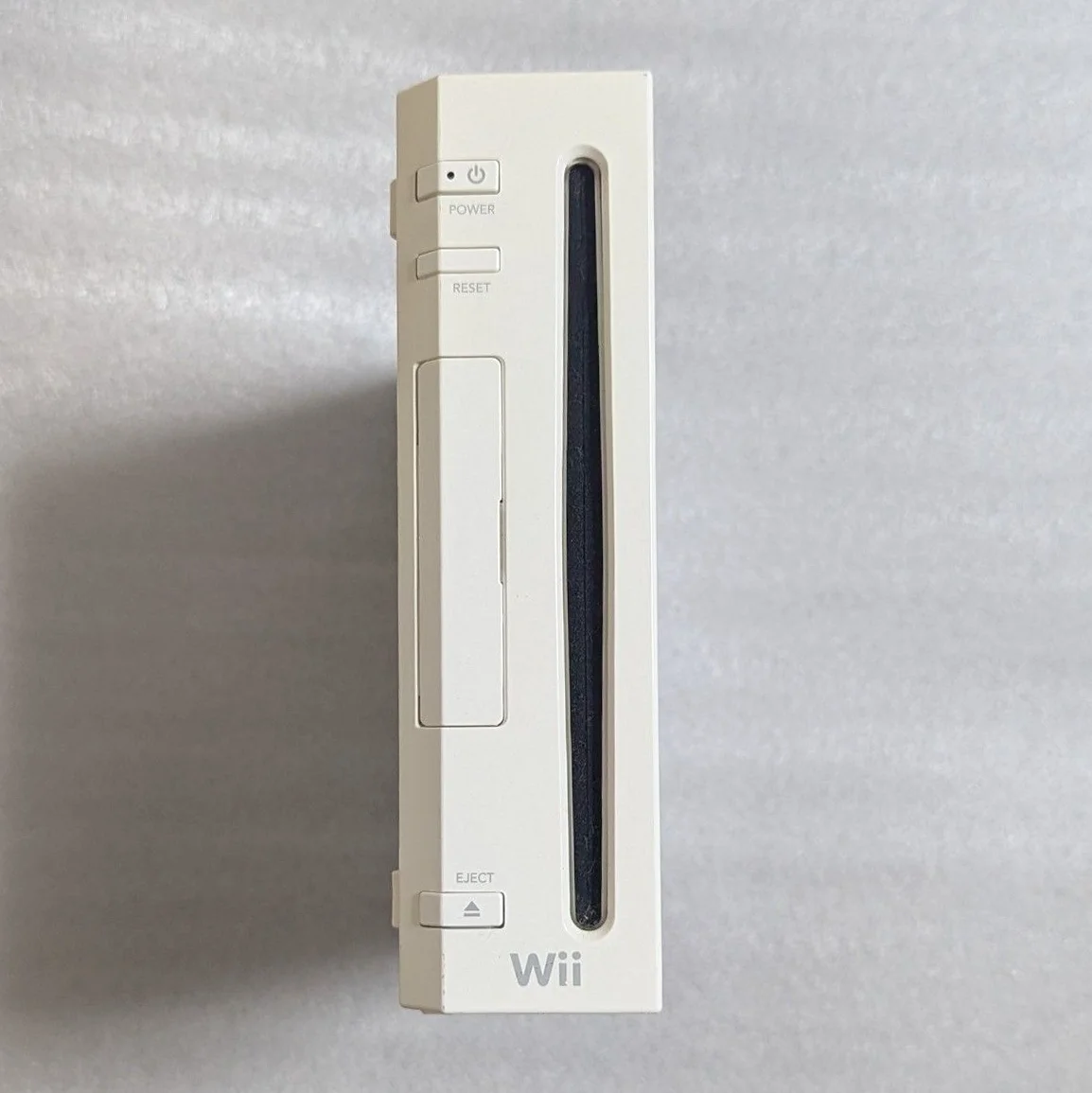
Your Wii powers on with sound but no image, or screen flickering, abnormal colors, wrong resolution? Most frustrating: playing "The Legend of Zelda: Twilight Princess" when suddenly black screen! Wii's video output system supports multiple formats, from 480i to 480p, plus special 480p progressive scan. Don't worry, most video issues can be diagnosed and repaired.
Required Tools
- Phillips screwdriver, PH0 size
- Tri-wing screwdriver (Y-type), Wii-specific
- Multimeter with frequency testing capability
- Oscilloscope (highly recommended)
- Soldering iron and solder
- Heat gun (for chip repair)
- Electronic cleaner
- Cotton swabs and isopropyl alcohol
- Various video cable testing (AV, component, S-video)
- Anti-static gloves and work mat
Repair Steps
1. Safe Disassembly, Understanding Video System Architecture
- Unplug all cables, remember sensor bar position
- Remove all bottom screws (note hidden screws under feet)
- Open shell, careful with WiFi and Bluetooth antennas
- Locate video-related sections:
- AV port (back of motherboard)
- Video encoder chip
- GPU (Hollywood chip)
- Video output related components
2. Wii Video System Detailed Explanation
Video Output Types:
- Composite video: Standard AV port, 480i interlaced scan
- S-video: Separates luminance and chrominance, better quality
- Component video: YPbPr, supports 480p progressive scan
- RGB: Requires modification, European version supports
Key Chips:
- GPU: Hollywood chip, integrated video processing
- Video encoder: Converts digital signals to analog
- Output drivers: Enhance signal driving capability
- Mode switching: Controls output format switching
3. System Diagnostic Process
Step 1: Basic Checks
- Cable testing: Test with known good video cables
- TV testing: Try different TV or input ports
- Resolution testing: Try 480i and 480p (if supported)
- Port cleaning: Clean all video ports
Step 2: Signal Tracing
Trace signals with multimeter and oscilloscope:
AV Port Pin Definitions: - Pin 1: Composite video signal - Pin 2: Right channel audio - Pin 3: Left channel audio - Pin 4: Ground - Pin 5: S-video luminance (if supported) - Pin 6: S-video chrominance (if supported)
Component Port: Separate Y, Pb, Pr ports
Step 3: Key Point Testing
- Port voltage: Measure port-related voltages
- Signal waveform: Check video signals with oscilloscope
- Clock signals: Check video clock normal
- Sync signals: Check horizontal/vertical sync signals
4. Common Fault Repairs
Fault 1: Completely No Image (Sound Present)
- Check video cable intact
- Test composite video output capacitors
- Check video encoder chip power supply
- Measure GPU video output signals
- Check mode switching circuit
Fault 2: Image Flickering/Unstable
- Check video signal coupling capacitors
- Check sync signal related circuits
- Check power filtering good
- Check for interference sources
- Check video clock stability
Fault 3: Abnormal Colors
- Check chrominance signal related circuits
- Check video encoder chip
- Check component output Pb/Pr channels
- Check TV system settings (NTSC/PAL)
- Check chrominance filtering circuits
Fault 4: Only 480i No 480p
- Check component output circuit
- Check mode switching chip
- Check software settings (need to enable 480p in settings)
- Check if game itself supports 480p
- Check if TV supports 480p input
Fault 5: Image with Interference Stripes
- Check power filtering capacitors
- Check video signal shielding
- Check grounding good
- Check nearby interference sources
- Check video encoder chip power supply
5. Video Encoder Chip Repair
If encoder chip confirmed problematic:
Chip Identification:
Wii common video encoder chips: - CXA2075Q: Sony manufactured, common - Other models: May differ between batches
Repair Steps:
- Power testing: Measure all power pins
- Clock testing: Check clock input normal
- Signal testing: Test input/output signals
- Chip replacement: Requires BGA soldering skills
- Firmware check: Check video-related firmware settings
6. Component Output Special Repair
Wii component output requires special attention:
- Component port inspection: Check three RCA ports
- Component signal testing: Test Y, Pb, Pr signals separately
- Low-pass filter check: Check component output filtering circuits
- Driver circuit check: Check component signal driver circuits
- Mode switching check: Check 480i/480p switching circuit
7. Software-related Issues
Sometimes software rather than hardware issues:
- Resolution settings: Need to enable 480p in Wii settings
- TV system: NTSC and PAL system issues
- Game compatibility: Some games only support 480i
- System version: Updating system may resolve video issues
- Region settings: Different regions have different video standards
Parts & Price Reference
| Required Parts | Reference Price | Purchase Channels | Player Recommendations |
|---|---|---|---|
| Video encoder chip | ¥60-120 | Xianyu/Taobao | Requires soldering skills |
| Video output capacitor set | ¥20-35 | Electronics market | Buy high-quality capacitors |
| Wii original component cable | ¥50-100 | Collector shops | Best quality but expensive |
| Wii original AV cable | ¥30-60 | Taobao | Good compatibility |
| Oscilloscope | ¥300-1000 | Instrument shops | Essential for video repair |
| Hot air station | ¥200-500 | Taobao | Needed for BGA chip repair |
Wii Video Technical Details
🎮 Video Specifications
- Resolution: 480i/480p (NTSC), 576i (PAL)
- Color space: YPbPr (component), Y/C (S-video), Composite
- Output formats: Supports progressive and interlaced scan
- Anti-aliasing: Hardware supports 2x multisample anti-aliasing
📺 Different Output Quality Comparison
- Composite video: Worst, color crosstalk, 480i
- S-video: Better, luminance/chrominance separation, 480i
- Component video: Very good, accurate colors, supports 480p
- RGB: Best, requires modification
🔧 Model & Regional Differences
- NTSC-U: US version, 480i/480p
- NTSC-J: Japanese version, 480i/480p
- PAL: European/Australian version, 576i/480p (partial)
- Video encoding: Different regions may use different chips
Repair Techniques & Precautions
⚠️ Safety Precautions
- Electrostatic protection: Video chips sensitive to static
- Soldering skills: BGA chips require professional equipment
- Testing sequence: Low voltage testing first, gradually increase
- Oscilloscope use: Note grounding, avoid shorts
- High voltage sections: Note power-related circuit safety
🔧 Professional Techniques
- Signal injection method: Inject signals from back to front for testing
- Comparison method: Compare measurements with normal motherboard
- Heating method: Local heating of suspicious chips for testing
- Substitution method: Substitute with known good components for testing
- Software diagnostics: Enter engineering mode for testing
Repair Difficulty: ★★★★☆
Estimated Time: 3-4 hours
Success Probability: 75% (peripheral circuits), 45% (chip-level)
🎯 Video Output Enhancement Options
After repair consider upgrades: 1. HDMI modification: Direct HDMI signal output 2. RGB output: Modify to standard RGB output 3. Deinterlacing: External video processor 4. Line doublers: Use OSSC or RetroTINK 5. GCHD: Wii-specific HDMI solution (requires modification)
📊 Video System Lifespan
- Encoder chips: 15-20 years lifespan
- Output capacitors: 10-15 years lifespan
- Port lifespan: Depends on usage frequency
- Component ports: Relatively more durable
Player Insights: Wii's game graphics were distinctive for their time - "The Legend of Zelda: Twilight Princess" oil painting style, "Super Mario Galaxy" dreamlike scenes, "Wii Sports" clean and bright. Repairing video output, seeing these classic visuals displayed on modern TVs again, that visual experience remains enjoyable. Good video output enhances motion-controlled gaming experience.
Final Advice: Video repair is among Wii's more complex repairs. If lacking experience and equipment, recommend addressing simple issues first (cables, ports). Chip-level repair requires professional skills, don't attempt lightly to avoid greater damage. Component output is Wii's best quality option, worth repairing.
🔍 Advanced Diagnostics: Professional Equipment Analysis
If have professional equipment: 1. Video analyzer: Comprehensive video signal quality analysis 2. Logic analyzer: Analyze digital video signals 3. Spectrum analyzer: Check high-frequency interference 4. Thermal imager: Locate overheating chips 5. Waveform monitoring: Check video waveform parameters
🛠️ Modern Solutions
For modern TVs: 1. HDMI converter boxes: Various brands available 2. OSSC: Open Source Scan Converter, supports 480p 3. RetroTINK: Professional-grade video conversion 4. Wii2HDMI: Direct plug-in HDMI converter 5. Advantages: Plug-and-play, excellent quality 6. Disadvantages: Higher price, requires additional equipment