Complete Guide to GameCube Controller Port Repair
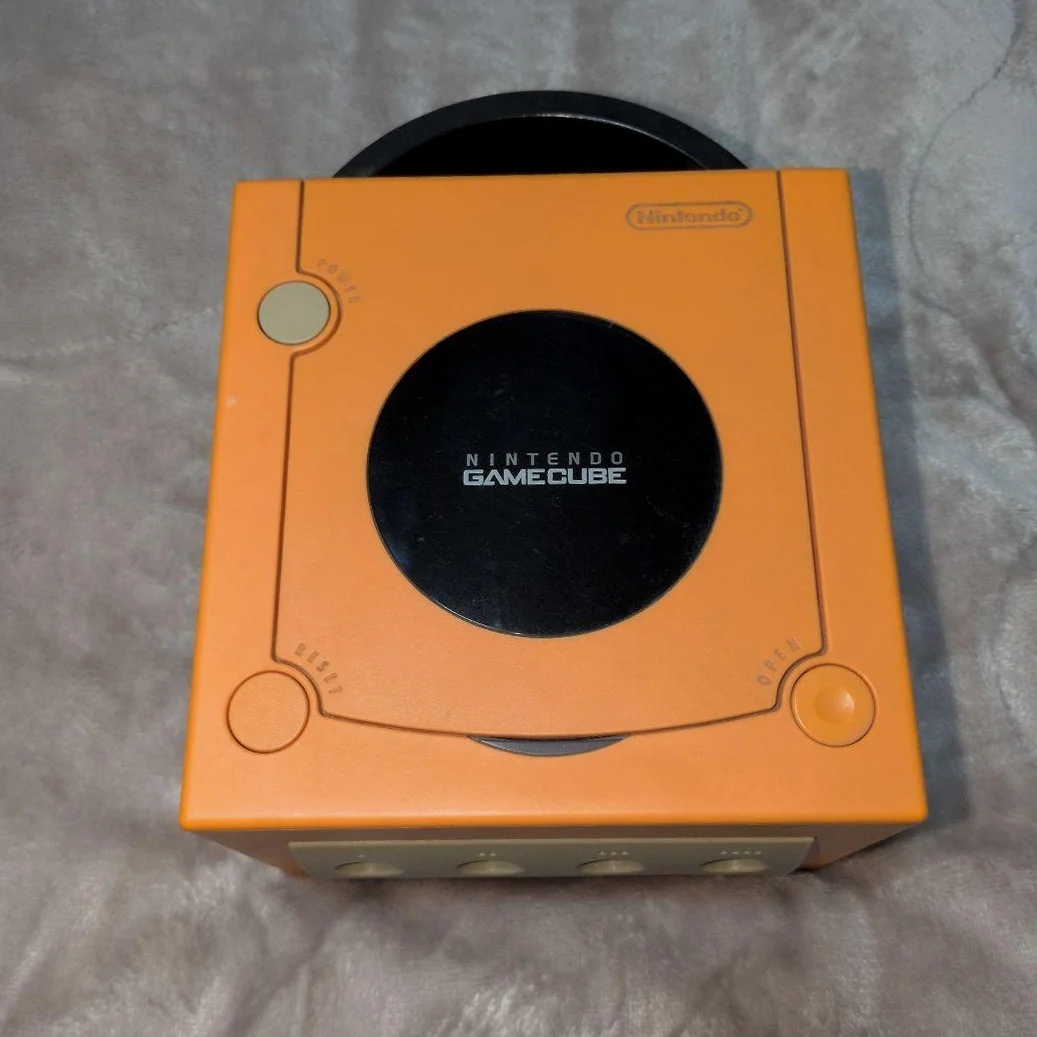
Your GameCube controller won't respond when plugged in, or only certain buttons work? The worst is when it disconnects mid-match in Super Smash Bros! Controller port oxidation, bent pins, and internal cable breaks are common issues. Don't rush to buy a new console—this repair is relatively straightforward!
Required Tools
- Tri-wing screwdriver (Y-head), GameCube specific
- Phillips screwdriver, PH0 size
- Precision tweezers, pointed tips preferred
- Electronic contact cleaner
- Cotton swabs and isopropyl alcohol
- Multimeter for continuity testing
- Soldering iron and fine solder (optional)
- Magnifying glass or phone macro lens
- Anti-static gloves
Repair Steps
1. Disassembly Preparation - Locate Controller Port Board
- Unplug all cables, noting their positions
- Remove 6 tri-wing screws from bottom (Y-head screwdriver)
- Open top cover, be careful with disc drive ribbon cable
- Find controller port board—separate small board at front of console
- Disconnect ribbon cable connecting port board to mainboard
- Remove screws securing port board, extract the board
2. Port Visual Inspection
- Port Pin Inspection: 4 controller ports, each with 12 pins
- Pin Condition: Check for bending, breakage, oxidation
- Port Interior: Shine strong light inside, check if metal contacts are deformed
- Ribbon Cable Connector: Check connection to mainboard for looseness
- Circuit Board: Check for corrosion, broken traces
3. Cleaning and Repair
Cleaning Steps:
- Spray electronic contact cleaner, wait 30 seconds
- Gently wipe port interior with cotton swabs
- Insert/remove controller multiple times for friction cleaning
- Use compressed air to dry residual liquid
Pin Repair:
- Bent Pins: Gently straighten with tweezers
- Oxidized Pins: Lightly sand with fine sandpaper
- Broken Pins: Require soldering repair or port replacement
4. Circuit Testing and Diagnosis
Test each port's 12 pins with multimeter:
| Pin | Function | Normal Resistance | Testing Method |
|---|---|---|---|
| 1 | +3.3V Power | Near 0Ω | Test to ground |
| 2 | Data Line | Several hundred Ω | Test connection to mainboard |
| 3 | Ground | 0Ω | Direct to ground |
| 4 | Data Line | Several hundred Ω | Test connection to mainboard |
| 5-12 | Other Signals | Several hundred Ω - few kΩ | Functional testing |
5. Common Fault Repairs
Fault 1: All Ports Fail
- Check port board ribbon cable connection
- Check port interface chip on mainboard
- Check if +3.3V power supply is normal
Fault 2: Single Port Failure
- Clean that specific port
- Check that port's pins
- Check port interior metal contacts
Fault 3: Partial Button Failure
- Check corresponding data lines
- Check resistors on mainboard
- Could be controller issue itself
Fault 4: Intermittent Connection
- Check ribbon cable contact
- Check port looseness
- Check for dry solder joints
6. Port Replacement Guide
If port is severely damaged, replacement needed:
- Purchase New Port: GameCube specific controller port
- Remove Old Port: Use hot air station or desoldering pump
- Clean Pads: Remove residual solder
- Install New Port: Align position, solder anchor pins first
- Solder All Pins: Be careful not to bridge solder
- Clean and Inspect: Clean with alcohol, inspect solder quality
Parts and Price Reference
| Required Part | Reference Price | Purchase Channel | Player Advice |
|---|---|---|---|
| GameCube Controller Port Assembly | $6-12 USD | eBay/Amazon | Buy complete set with ribbon cable |
| Single Controller Port | $2-4 USD | Electronics market | Requires soldering skills |
| Electronic Contact Cleaner | $3-5 USD | Repair tool store | WD-40 Specialist Electrical Contact Cleaner |
| Connection Ribbon Cable | $1.5-3 USD | Online stores | Buy original length |
| Port Dust Cover | $0.75-1.5 USD | 3D printing service | Prevents dust ingress |
GameCube Controller Port Technical Details
🎮 Port Specifications
- Type: Proprietary digital interface
- Pin Count: 12 pins
- Communication Protocol: Custom serial protocol
- Power Supply: +3.3V DC
- Data Rate: Approximately 1Mbps
🔌 Differences Between 4 Ports
- Port 1: Primary controller, required for some games
- Ports 2-4: Secondary controllers, same functionality
- Memory Card Port: Adjacent, don't confuse with controller ports
🕹️ Supported Peripherals
- Standard Controller: WaveBird wireless needs receiver
- Dance Mat: Dance Dance Revolution
- Keyboard: Phantasy Star Online exclusive
- Microphone: Mario Party series games
- GB Player: Requires boot disc
Repair Tips and Precautions
⚠️ Safety Precautions
- Static Protection: GameCube chips are static sensitive
- Gentle Operation: Port pins are fragile
- Testing Order: Test before reassembly to avoid repeated disassembly
- Controller Testing: Test with known good controller
🔧 Professional Tips
- Oxidation Treatment: Deoxidizer works better than sandpaper
- Pin Correction: Use specialized correction tools
- Soldering Temperature: Soldering iron 320-350°C
- Flux: Use no-clean flux
Repair Difficulty: ★★★☆☆
Estimated Time: 1-2 hours
Success Probability: 90% (cleaning repair), 70% (port replacement)
🎯 Preventive Maintenance
- Regular Cleaning: Clean ports quarterly
- Use Dust Covers: Cover ports when not in use
- Avoid Hot Plugging: Plug/unplug when console is off
- Controller Maintenance: Keep controller plugs clean
📊 Port Lifespan Reference
- Original Ports: Normal use 10+ years
- Cleaning Cycle: Clean every 500 hours of use
- Common Failure Time: Oxidation issues start at 3-5 years
Player Insight: Many gamers consider the GameCube controller one of the best controllers ever made—that unique feel, precise analog stick, comfortable button layout. Repairing the controller port and holding that familiar controller again, playing a round of Super Mario Sunshine or The Legend of Zelda: The Wind Waker, feels like returning to 2002.
Final Advice: If cleaning doesn't work, check ribbon cable and mainboard connections first. GameCube controller ports rarely fail completely—most issues are contact problems. Be patient, your little cube can still fight!
🔍 Advanced Diagnosis: Logic Analyzer Detection
If you have a logic analyzer, you can detect communication: 1. Capture Data Packets: Analyze controller communication protocol 2. Check Timing: Ensure signal timing is correct 3. Diagnose Interference: Check signal quality
🛠️ Wireless Controller Solutions
If you don't want to repair wired ports: 1. WaveBird Controller: Original wireless solution 2. Third-Party Wireless: Brands like 8BitDo 3. Bluetooth Adapter: Modern solution 4. Advantages: Wireless freedom, supports modern controllers 5. Disadvantages: Requires batteries, potential latency