PlayStation Vita Camera Replacement Complete Guide
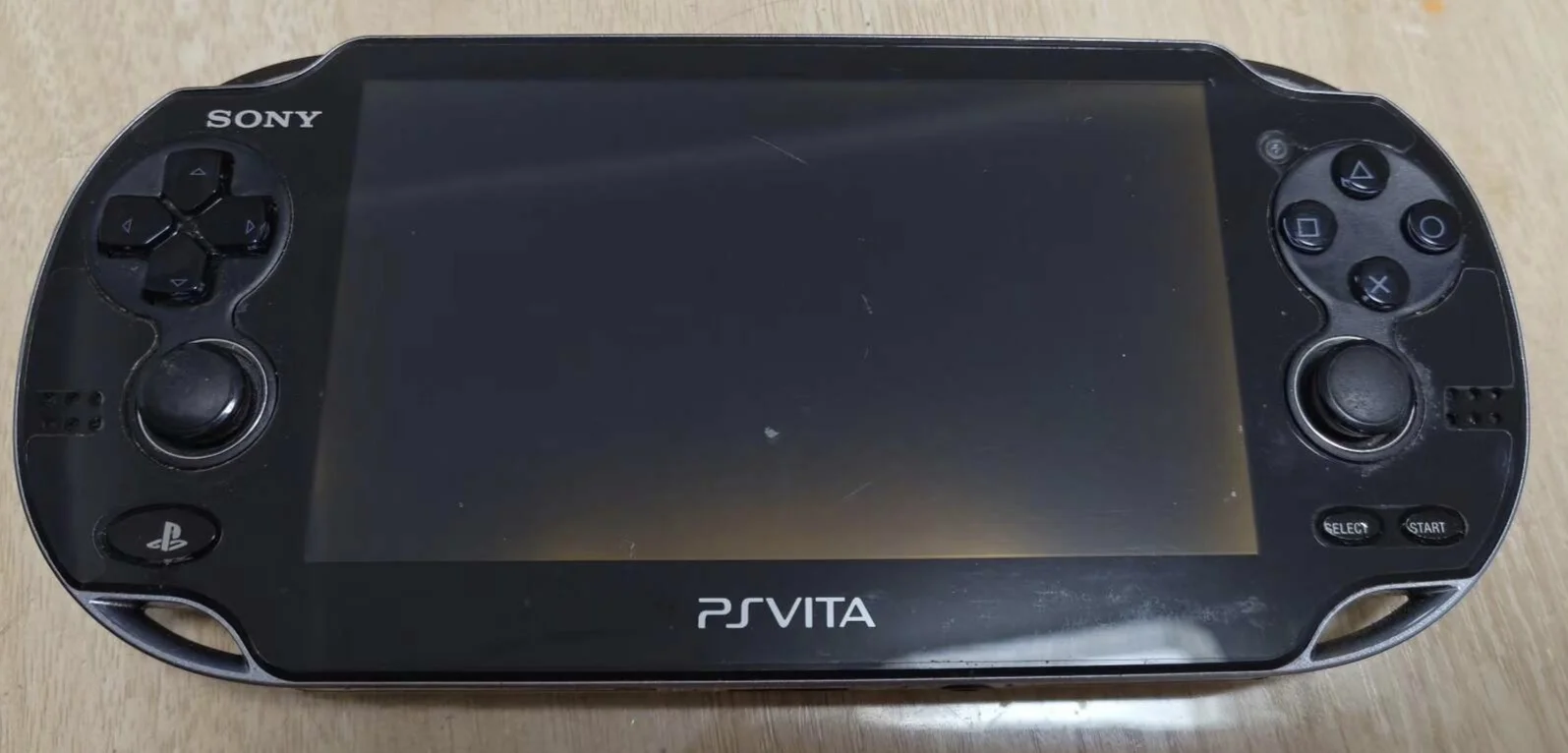
Overview
Crash! My PSV camera is blind! Want to use AR feature in Uncharted: Golden Abyss, but camera shows pitch black, Drake can't find treasure! Video chat, friends say I look like 'shadow person', can't see face at all! What's worse, photos all blurry, like pixelated mosaic! Now can't even scan QR codes, will my PSV be 'blind' forever? No way! Today I must give my PSV 'bright eyes' and restore its vision of the world!
Required Tools
- Phillips screwdriver (PH00)
- Plastic spudger
- Tweezers
- New PS Vita camera module (front or rear)
- Anti-static wrist strap (recommended)
Safety Precautions
- Power off: Ensure PS Vita is completely powered off
- Static protection: Cameras are static-sensitive—protection essential
- Lens protection: Don't touch camera lenses to avoid scratches
- Ribbon care: Camera ribbons are fragile—handle gently
Camera Specifications
Front Camera
- Location: Center above screen
- Resolution: VGA (640×480)
- Functions: Video chat, selfies
Rear Camera
- Location: Center of rear panel (inside touchpad for 1000 series)
- Resolution: 640×480 (same as front)
- Functions: Photos, AR games, video recording
Step-by-Step Procedure
Step 1: Identify Faulty Camera
- Test both cameras in camera application
- Determine which camera needs replacement (front or rear)
- Purchase corresponding camera module
Step 2: Remove Rear Panel
- Remove rear panel according to model
- Carefully remove rear panel
Step 3: Complete Power Disconnection
- Locate battery connector
- Disconnect battery
- Ensure device is completely powered off
Step 4: Access Camera
Front Camera Access
- May need to remove front panel or screen
- Expose front camera module
- Avoid damaging screen
Rear Camera Access
- Rear camera located near motherboard
- May need to remove some framework
- Expose rear camera module
Step 5: Remove Old Camera
- Locate camera ribbon connector
- Gently lift ribbon lock with tweezers
- Carefully remove camera ribbon cable
- Remove screws or clips securing camera
- Remove old camera module
Step 6: Install New Camera
- Place new camera in installation position
- Note installation orientation (usually marked)
- Secure camera module
- Connect camera ribbon cable
- Ensure ribbon fully inserted and locked
Step 7: Test and Reassemble
- Temporarily connect battery, test camera function
- Test photo, focus, video functions
- Reassemble all components
- Install rear panel
Functional Testing
- Photo test: Test still photo capture
- Video test: Test video recording function
- Focus test: Test autofocus function
- AR test: Test AR game function (rear camera)
- Video chat test: Test video call function (front camera)
Repair difficulty: ★★★☆☆ (Moderately difficult)
Time required: 40-60 minutes
Note: Camera repair requires special care to avoid lens and ribbon damage