PlayStation Vita Wi-Fi Antenna Replacement Complete Guide
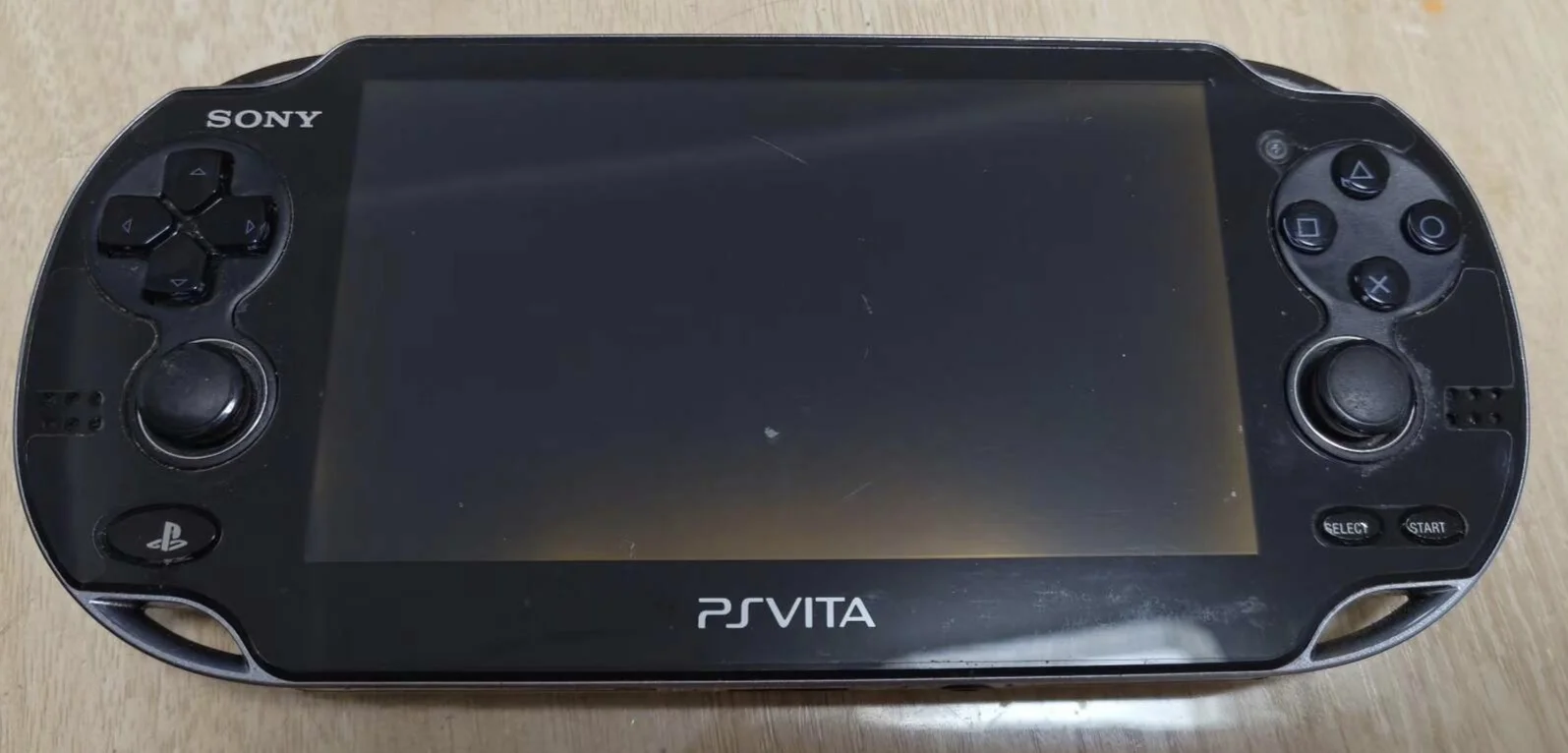
Overview
Furious! My PSV WiFi is slow as a snail! Downloading Uncharted DLC, progress bar crawls like a turtle, 3 hours for just 10%! Playing Killzone online, lag so high it's like watching slideshow, teammates call me 'dead weight'! What's worse, signal cuts in and out, disconnect at critical moments, get kicked from games! Now even browsing takes forever, should I use wired connection forever? No way! Today I must give my PSV 'super signal wings' and make it fly!
Required Tools
- Phillips screwdriver (PH00)
- Plastic spudger
- Tweezers
- New PS Vita Wi-Fi antenna
- Anti-static wrist strap (recommended)
Safety Precautions
- Power off: Ensure PS Vita is completely powered off
- Static protection: Wireless components are static-sensitive
- Antenna protection: Don't bend or fold antenna
- Connection care: Antenna connectors are delicate—handle gently
Step-by-Step Procedure
Step 1: Remove Rear Panel
- Remove rear panel according to model
- Carefully remove rear panel
Step 2: Complete Power Disconnection
- Locate battery connector
- Disconnect battery
- Ensure device is completely powered off
Step 3: Access Wi-Fi Antenna
- Wi-Fi antenna typically located at top or side of device
- May need to remove some framework
- Expose Wi-Fi antenna and connector
Step 4: Remove Old Antenna
- Locate antenna connector (typically IPEX or U.FL interface)
- Gently disconnect antenna connector with tweezers
- Important: Don't pull antenna cable—disconnect only the connector
- Remove adhesive tape or clips securing antenna
- Remove old antenna
Step 5: Install New Antenna
- Place new antenna in installation position
- Note antenna routing—avoid pinching or folding
- Secure antenna (use tape or clips)
- Connect antenna connector
- Ensure connector fully inserted and locked
Step 6: Test and Reassemble
- Temporarily connect battery, test Wi-Fi function
- Test signal strength and connection stability
- Test download and upload speeds
- Reassemble all components
- Install rear panel
Functional Testing
- Signal test: Test signal strength at different distances
- Connection test: Test connection establishment and maintenance
- Speed test: Test download and upload speeds
- Stability test: Test long-term connection stability
- Game test: Test online game connectivity
Repair difficulty: ★★☆☆☆ (Medium)
Time required: 25-40 minutes
Note: Antenna connectors are very delicate—handle with extreme care