PlayStation Vita Wireless Card Replacement Complete Guide
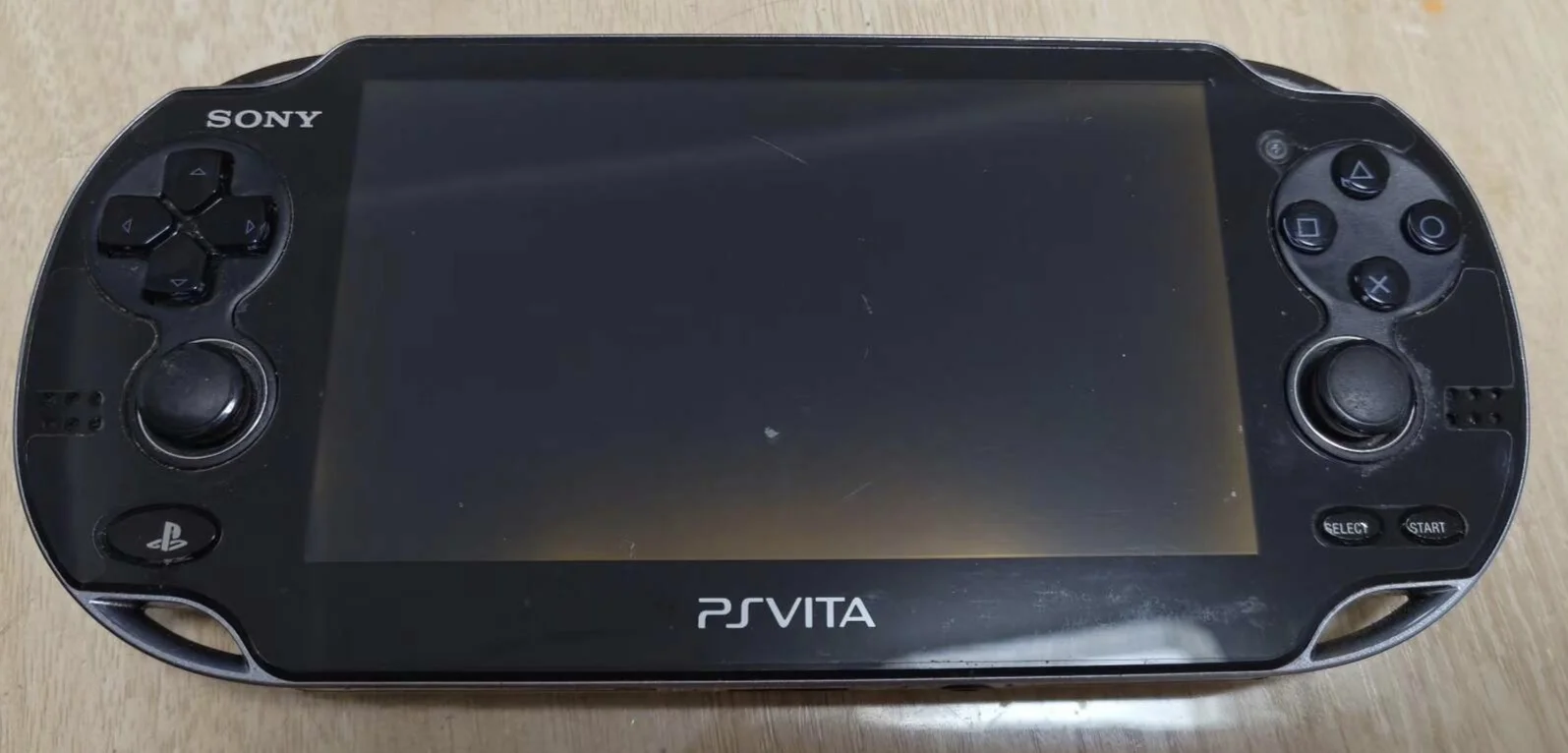
Overview
Bricked! My PSV wireless功能 all dead! Wi-Fi can't find any signals, Bluetooth can't connect controllers, completely 'wired device'! Downloading game updates,只能用USB连接电脑, speed slow as snail! What's worse, sometimes误搜索, battery drains fast, dead overnight! Now even basic联网功能 dead, should my PSV be offline forever? No way! Today I must give my PSV 'super wireless card' and restore wireless freedom!
Required Tools
- Phillips screwdriver (PH00)
- Plastic spudger
- Tweezers
- New PS Vita wireless card module
- Anti-static wrist strap (must use)
- Soldering iron and solder (if soldering required)
Safety Warnings
⚠️ Wireless Module Repair Warnings ⚠️
- ESD Protection Essential: Wireless modules extremely sensitive to static electricity
- Power Off Operation: Ensure complete power off, battery must be disconnected
- Soldering Caution: Requires professional skills if soldering needed
- Antenna Care: Antenna connectors are delicate
Wireless Card Specifications
Function Integration
- Wi-Fi: 802.11b/g/n wireless network
- Bluetooth: Bluetooth 2.1+EDR
- Integration: Wi-Fi and Bluetooth typically integrated in one module
- Location: Located at specific position on motherboard
3G Model Additional
- 3G Module: 3G models have separate 3G module
- GPS Integration: May include GPS functionality
- More Antennas: Requires connecting more antennas
Step-by-Step Instructions
Step 1: Comprehensive Preparation
- Completely power down PS Vita
- Disconnect all external accessories
- Wear anti-static wrist strap
- Prepare all tools
Step 2: Remove Rear Panel
- Remove rear panel according to model
- Carefully remove rear panel
Step 3: Complete Power Off
- Disconnect battery
- Ensure device is completely powered down
Step 4: Access Wireless Card
- Wireless card typically located at specific motherboard area
- May need to remove motherboard or part of frame
- Expose wireless card module
Step 5: Remove Old Wireless Card
Modular Card
- Locate card ribbon cable connector
- Gently lift cable lock using tweezers
- Remove card ribbon cable
- Disconnect antenna connectors (Wi-Fi, Bluetooth, GPS, etc.)
- Remove screws securing card
- Remove old card module
Soldered Card
- Advanced Repair: Requires professional soldering skills
- Use hot air station or soldering iron
- Carefully remove old card
- Clean pads
Step 6: Install New Wireless Card
Modular Installation
- Place new card in installation position
- Tighten securing screws
- Connect all antenna connectors
- Connect card ribbon cable
- Ensure all connections are secure
Soldered Installation
- Align new card with pads
- Secure position with tweezers
- Solder each pin
- Check solder quality, avoid shorts
Step 7: Testing and Reassembly
- Temporarily connect battery to test wireless functions
- Test Wi-Fi connection and Bluetooth functionality
- Test all wireless performance
- Reassemble all components
- Install rear panel
Function Testing
Wi-Fi Testing
- Connection Test: Test Wi-Fi connection establishment
- Speed Test: Test Wi-Fi transfer speed
- Stability Test: Test long-term connection stability
- Range Test: Test signal coverage distance
Bluetooth Testing
- Pairing Test: Test Bluetooth device pairing
- Transfer Test: Test Bluetooth data transfer
- Audio Test: Test Bluetooth audio (if supported)
- Multi-device Test: Test multiple device connections
Comprehensive Testing
- Simultaneous Use: Test Wi-Fi and Bluetooth working simultaneously
- Interference Test: Test wireless interference conditions
- Power Consumption Test: Test wireless function power consumption
- Game Testing: Test online game performance
Repair Difficulty: ★★★★☆ (Very Difficult) Time Required: 60-90 minutes Success Probability: 70% for experienced, not recommended for beginners
Final Recommendation: Wireless card repair requires professional skills, especially if soldering needed. Unless you have extensive electronics repair experience, consider seeking professional assistance.