PlayStation Vita PS Button Replacement Complete Guide
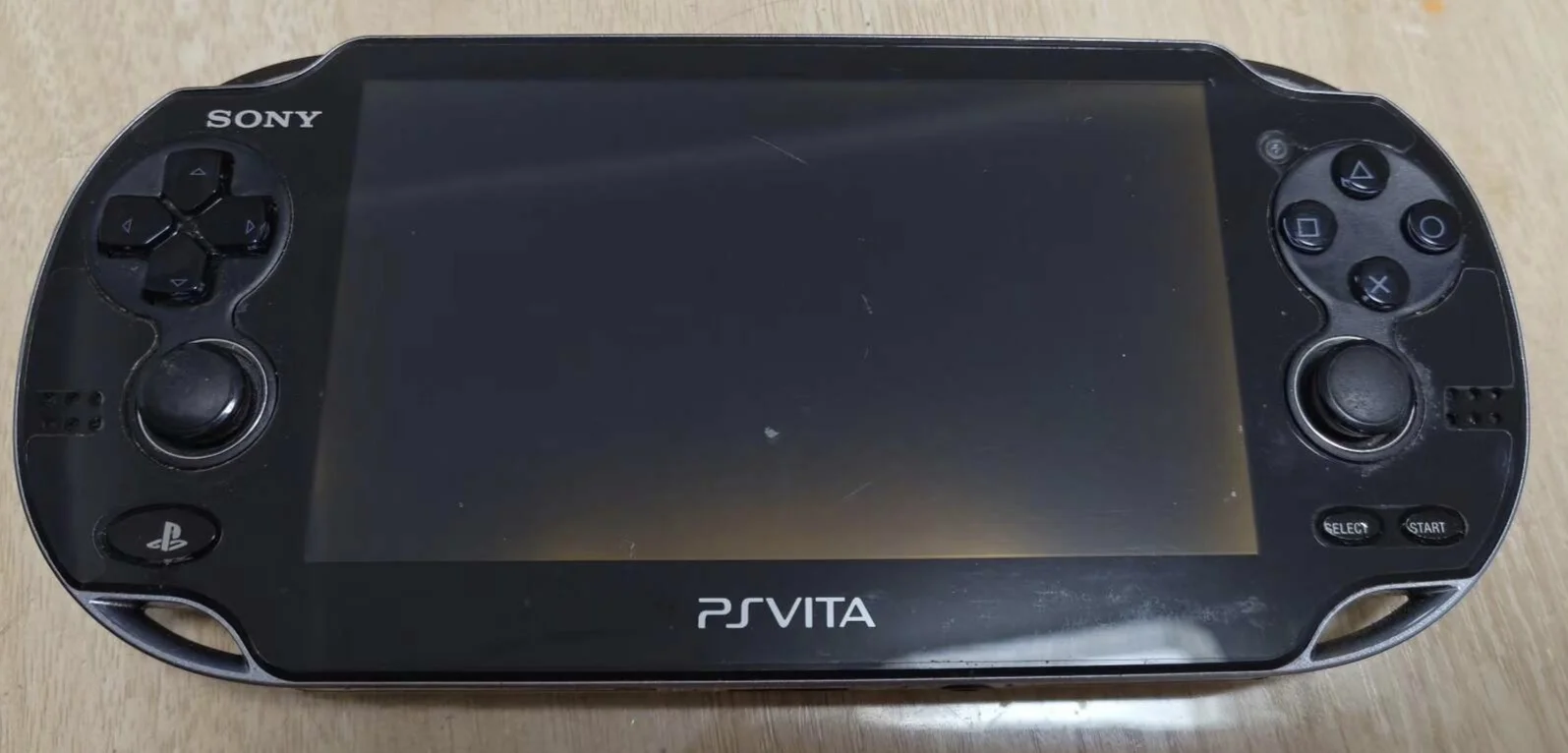
Overview
Crash! My PSV PS button dead! Gaming want to return to home menu, press PS button repeatedly but no response, like pressing a rock! What's worse, sometimes auto-triggers PS button, at critical moment suddenly jumps to home menu, progress all lost! Now even waking device requires power button, completely lost quick operation convenience! Should I be trapped in games forever? No way! Today I must give my PSV 'sensitive PS button' and restore system control!
Required Tools
- Phillips screwdriver (PH00)
- Plastic spudger
- Tweezers
- New PS Vita PS button module
- Anti-static wrist strap (recommended)
Safety Precautions
- Power off operation: Ensure PS Vita completely powered off
- Static protection: Discharge static electricity before operation
- Ribbon cable care: PS button ribbon cable very fragile
- Silicone pad protection: Carefully handle silicone pad providing rebound
Detailed Steps
Step 1: Remove Back Panel
- Remove back panel according to model
- Carefully remove back panel
Step 2: Complete Power Disconnection
- Disconnect battery connection
- Ensure device completely powered off
Step 3: Access PS Button
- PS button located central bottom of device
- Next to Start/Select buttons
- May need to remove part of frame
- Expose PS button module
Step 4: Remove Old PS Button
- Find PS button ribbon cable connector
- Gently lift ribbon cable latch with tweezers
- Unplug PS button ribbon cable
- Remove screws or clips securing PS button
- Remove old PS button module
Step 5: Install New PS Button
- Install new silicone pad (if included)
- Place new PS button into installation position
- Note PS logo orientation
- Secure PS button module
- Connect PS button ribbon cable
- Ensure ribbon cable fully inserted and latched
Step 6: Testing and Reassembly
- Temporarily connect battery to test PS button function
- Test short press, long press functions
- Test system menu invocation
- Reassemble all components
- Install back panel
Function Testing
- Short press test: Test return to home menu function
- Long press test: Test shortcut menu function
- Combination test: Test combined use with other buttons
- System test: Test all system functions
Repair difficulty: ★★☆☆☆ (Medium) Required time: 25-40 minutes