PSP Go Front Panel Replacement Complete Guide
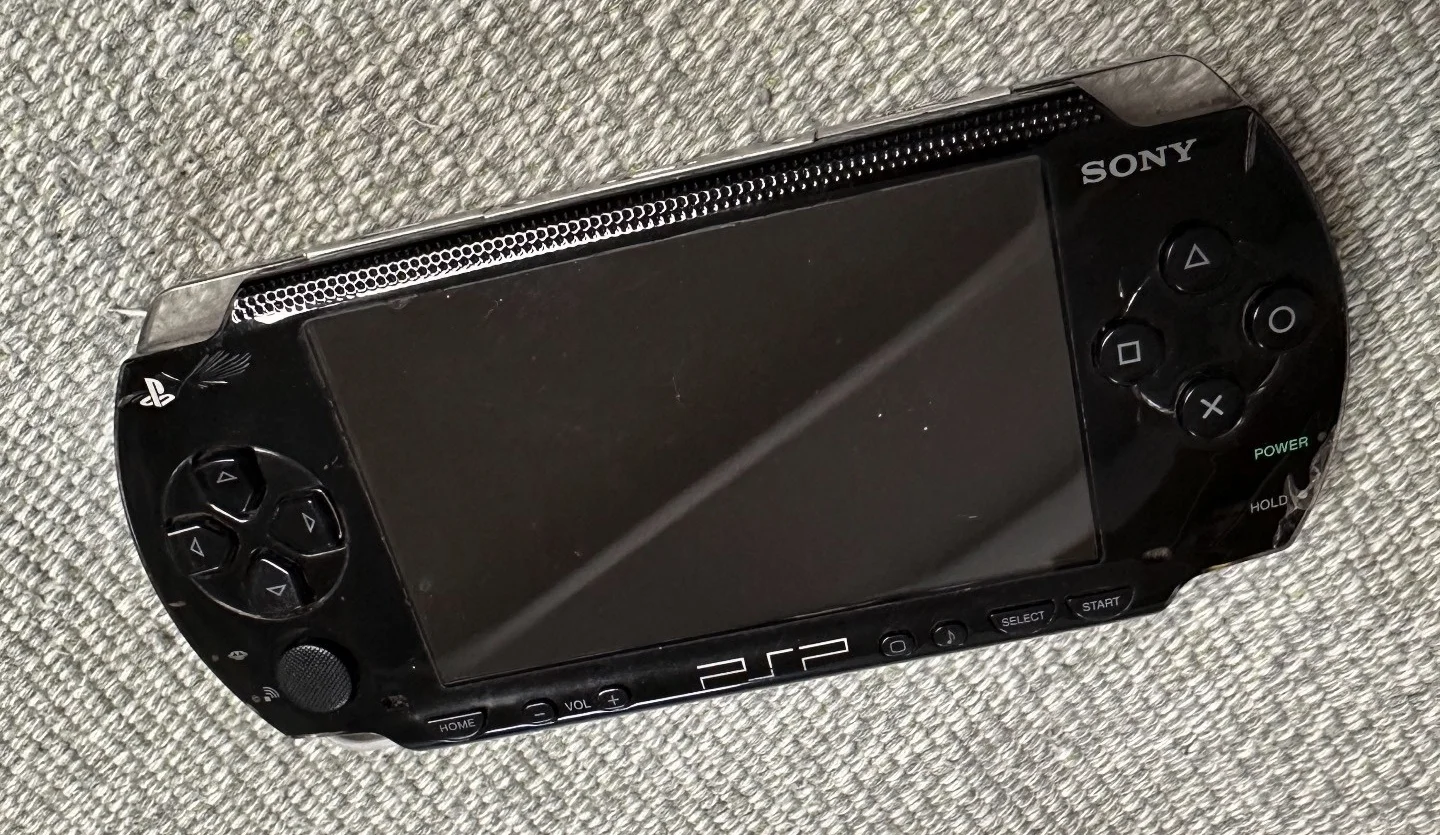
PSP 1000 Black Console
Overview
Crisis! PSP Go front panel is scratched to hell! Don't know when it started, but the front panel is covered in密密麻麻 scratches, like it was clawed by a cat! Now when gaming, scratches reflect light and seriously distract; watching videos, scratches make everything blurry! What's even more infuriating is the deepest scratches are around the HOME button, feeling like paint will chip every time I press it! Should I live with this 'scratched-up face' forever? No way! Today I must give my PSP Go a 'fresh face' and restore its youth!
Required Tools
- Phillips screwdriver (PH00)
- Plastic spudger
- Tweezers
- New PSP Go front panel
- Anti-static wrist strap (recommended)
Safety Precautions
- Power Off: Ensure PSP Go is completely powered down
- Screen Protection: Be especially careful with screen during front panel removal
- Clip Care: Front panel has multiple precision clips—avoid excessive force
- Ribbon Cable Attention: Note ribbon cables connected to front panel
Front Panel Structure
Main Components
- Screen Bezel: Protects screen edges
- Function Button Area: Includes HOME, SELECT, START buttons
- Speaker Openings: Speaker grilles on left and right sides
- Indicator Windows: Power and wireless indicator lights
- Clip Structure: Multiple clips securing front panel
Common Issues
- Bezel Cracks: From drops or pressure
- Button Area Damage: Button failure or damage
- Speaker Grille Damage: Affects sound output
- Clip Breakage: From improper disassembly
Step-by-Step Instructions
Step 1: Remove Back Cover
- Place PSP Go face down
- Remove 4 screws from back cover
- Gently pry open back cover with plastic spudger
- Carefully remove back cover
Step 2: Disconnect Battery
- Locate battery connector
- Disconnect battery using plastic spudger
- Ensure device is completely powered down
Step 3: Remove Motherboard
- Remove 6 screws securing motherboard
- Note screw positions (different lengths)
- Gently lift motherboard
- Disconnect ribbon cables connected to motherboard
- Completely remove motherboard, place in safe location
Step 4: Remove Screen (Optional)
- If front panel is bonded to screen, may need to remove screen first
- Follow screen replacement guide to remove screen
- Protect screen ribbon cable
Step 5: Remove Old Front Panel
- Front panel secured by screws and clips
- Remove screws securing front panel
- Use plastic spudger to start releasing clips from edge
- Release all clips in sequence
- Carefully remove old front panel
- Avoid damaging screen (if not removed)
Step 6: Clean Installation Area
- Clean frame with cotton swabs
- Remove all dust and residue
- Check clip positions are clean
- Ensure installation area is flat
Step 7: Install New Front Panel
- Align new front panel with console body
- Start from one side, gently press clips
- Engage all clips in sequence
- Ensure each clip is properly engaged
- Tighten securing screws
Step 8: Reinstall Screen (if removed)
- Reinstall screen following screen replacement guide
- Ensure screen ribbon cable connections are secure
- Check screen installation is flat
Step 9: Reassemble
- Install motherboard, connect all ribbon cables
- Connect battery
- Install back cover
- Tighten all screws
Post-Installation Inspection
Visual Inspection
- Gap Check: Check gaps between front panel and console body are even
- Flatness Check: Check front panel is installed flat
- Color Match: Check new front panel color matches console body
- Opening Alignment: Check all openings are properly aligned
Function Testing
- Button Test: Test all function buttons
- Speaker Test: Test sound output
- Indicator Test: Test power and wireless indicator lights
- Screen Test: Check screen display is normal
Common Issues and Solutions
Issue 1: Front Panel Won't Close Completely
- Possible Cause: Clips not aligned or internal obstruction
- Solution: Reopen and check, remove obstructions, realign installation
Issue 2: Button Failure
- Possible Cause: Button ribbon cable not connected or front panel improperly installed
- Solution: Check button ribbon cable connections, reinstall front panel
Issue 3: Uneven Gaps
- Possible Cause: Front panel deformed or uneven installation
- Solution: Check front panel flatness, adjust installation
Issue 4: Color Mismatch
- Possible Cause: Front panel model or batch different
- Solution: Confirm purchased correct model and color front panel
Maintenance Recommendations
Daily Maintenance
- Regular Cleaning: Clean front panel with microfiber cloth
- Avoid Scratches: Don't use hard objects on front panel
- Dust Protection: Use protective case to prevent dust entry
- Avoid High Temperature: Don't place device in high-temperature environments
Long-term Care
- Clip Inspection: Regularly check clips are intact
- Button Check: Check function buttons work properly
- Opening Cleaning: Regularly clean speaker openings and indicator windows
Purchase Guide
Material Selection
- Original Plastic: Best choice, perfect match
- High-quality ABS: Good durability, cost-effective
- Avoid Cheap Products: Cheap front panels may affect function and appearance
Color Matching
- Piano Black: Standard edition color
- Pearl White: Special edition color
- Clear Version: Choice for modification enthusiasts
- Ensure Consistency: New front panel color should match console body
Quality Inspection
- Clip Check: Check all clips are intact
- Opening Precision: Check all openings are precise
- Surface Finish: Check surface finish is smooth
- Thickness Check: Check thickness matches original
Professional Repair Techniques
Disassembly Techniques
- Sequential Operation: Release clips in fixed sequence
- Tool Use: Use appropriate plastic tools
- Heat Assistance: If bonding is too tight, apply slight heat to soften adhesive
Installation Techniques
- Alignment First: Align clips before pressing to secure
- Even Pressure: Apply even pressure when pressing, avoid localized pressure
- Step-by-Step Check: Check alignment during installation process
Different Version Considerations
PSP Go Standard Edition
- Front panel is pure black
- Standard button layout
- Unified clip design
PSP Go Special Edition
- May have special colors or textures
- Button markings may differ
- Requires special attention during installation
Modified Front Panels
- Clear front panel: Shows internal structure
- Colored front panel: Personalized choice
- Note thickness and compatibility during installation
Cost-Benefit Analysis
Repair Cost
- Original Front Panel: ¥100-200
- High-quality Imitation: ¥50-100
- Compatible Front Panel: ¥30-60
- Repair Time: 30-60 minutes
Repair Value
- Aesthetic Restoration: Refreshes device appearance
- Function Protection: Protects internal components
- User Experience: Improves button and sound experience
- Value Preservation: Maintains device completeness and value
Summary
PSP Go front panel replacement is a medium-difficulty repair task, with main challenges being clip handling and precise positioning. Proper replacement can significantly improve device appearance and user experience. By following this guide's steps and paying attention to details, most users can successfully complete the replacement.
Repair Difficulty: ★★☆☆☆ (Medium) Time Required: 40-60 minutes Success Probability: 90%+
Note: Front panel repair involves multiple clips and precise alignment. If you lack relevant experience or worry about damaging clips, consider seeking professional repair assistance. Improper disassembly may cause clip breakage, increasing repair difficulty.