Super Nintendo Controller Port Replacement Complete Guide
Overview
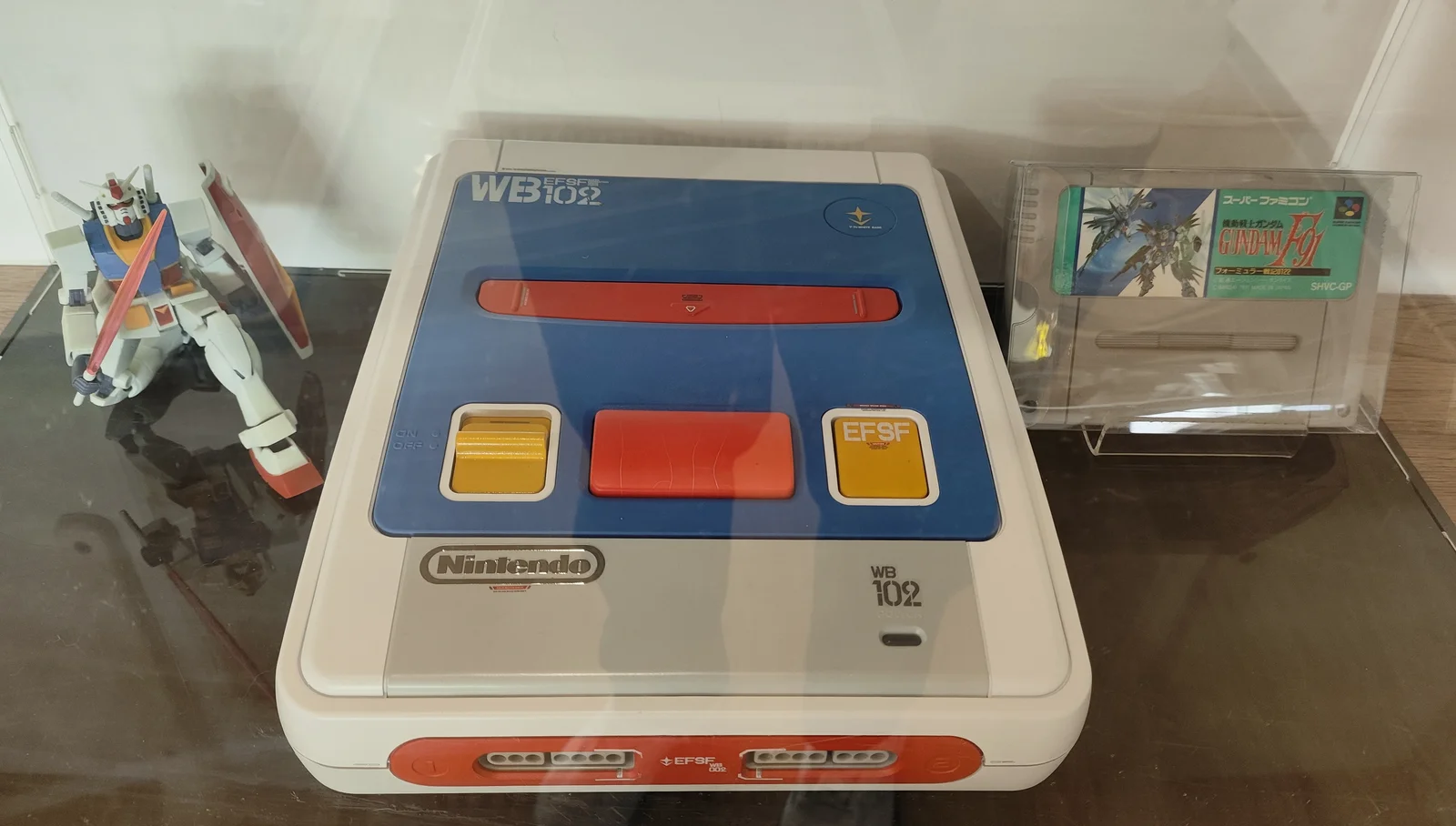
The Super Nintendo (SNES) console has two controller ports on the front panel for connecting standard SNES controllers. Due to long-term plugging/unplugging, dust accumulation, or physical damage, these ports may develop poor contact, looseness, or complete failure. This guide provides detailed instructions on how to diagnose and replace SNES controller ports.
Required Tools
- Phillips screwdrivers (#00 and #1)
- Flathead screwdriver or plastic spudger
- Soldering iron (30-40 watts)
- Desoldering pump or desoldering wick
- Flux
- Solder (60/40 or lead-free)
- New SNES controller port (ensure compatibility)
- Anti-static wrist strap
- Multimeter (for testing)
- Isopropyl alcohol and cotton swabs
Safety Precautions
- Power Off Operation: Ensure the SNES console is completely powered off, disconnect all cables
- Static Protection: Wear an anti-static wrist strap to prevent ESD damage to sensitive components
- Soldering Safety: Work in a well-ventilated area, avoid burns
- Component Identification: Take photos to document original wiring and component positions
- Patience Required: The solder points on the motherboard are small, requiring patience and precision
Diagnostic Steps
Before deciding to replace the port, confirm the exact problem:
Step 1: Problem Confirmation
- Test Both Ports: Test port 1 and port 2 separately
- Test Multiple Controllers: Rule out controller-specific issues
- Observe Symptoms:
- Complete lack of response
- Intermittent response
- Specific button failures
- Controller looseness
Step 2: Physical Inspection
- Visual Inspection:
- Check for physical damage (bending, breakage)
- Check internal pins for oxidation, bending, or missing pins
-
Check if port is loose (can be gently wiggled)
-
Cleaning Test:
- Clean port interior with cotton swabs dipped in isopropyl alcohol
- Blow out dust with compressed air
- Retest
Step 3: Circuit Testing (Using Multimeter)
- Continuity Test:
- Test connectivity from port pins to corresponding solder points on motherboard
-
Check for open circuits
-
Short Circuit Test:
- Check for shorts between adjacent pins
- Check for shorts between pins and ground
Replacement Steps
Step 1: Disassemble Console Housing
- Preparation:
- Disconnect all cables (power, video, controllers)
-
Place console on soft, anti-static work surface
-
Remove Bottom Screws:
- Use #1 Phillips screwdriver to remove all screws from console bottom (typically 6-7 screws)
-
Note screw lengths may vary, document positions
-
Separate Housing:
- Carefully lift top shell
- Note there may be internal cables (power switch, reset button)
- If cables are present, disconnect them first
Step 2: Access Controller Ports
- Locate Ports:
- Controller ports are soldered to front edge of motherboard
-
Typically two identical ports
-
Remove Obstructions:
- Remove shielding or other components if necessary
- Photograph all disassembly steps
Step 3: Remove Old Port
- Prepare Soldering Tools:
- Preheat soldering iron to appropriate temperature (approximately 350°C)
-
Prepare desoldering pump or desoldering wick
-
Remove Solder:
- Work on each pin's solder point sequentially: a. Heat solder point with iron b. Use desoldering pump to remove molten solder c. Or use desoldering wick to clean solder point
-
Ensure all pins are completely detached from solder pads
-
Remove Port:
- After all solder points are clean, gently wiggle port
- Remove old port from front of motherboard
- If port has locking tabs, carefully release them
Step 4: Prepare New Port and Motherboard
- Clean Solder Pads:
- Clean solder pad area with isopropyl alcohol and cotton swabs
-
Check solder pads are intact, no lifting
-
Prepare New Port:
- Check new port pins are straight
- Slightly adjust pin angles if necessary
- Ensure correct port orientation (reference old port or motherboard markings)
Step 5: Install New Port
- Position Port:
- Insert new port into motherboard holes
- Ensure all pins pass through corresponding holes
-
Port should sit flush against motherboard surface
-
Temporary Fixation:
- Solder two diagonal pins first for temporary fixation
-
Verify port is properly seated and oriented correctly
-
Solder All Pins:
- Solder each pin sequentially
- Use appropriate amount of solder, forming smooth conical solder joints
- Avoid excessive solder causing shorts
- Ensure strong solder joints, no cold joints
Step 6: Clean and Inspect
- Clean Solder Joints:
- Clean soldered area with isopropyl alcohol
-
Check for solder splatter or residue
-
Visual Inspection:
- Check all solder joints are smooth, complete
- Check for shorts between pins
-
Check port installation is straight
-
Electrical Check (Using Multimeter):
- Test continuity of each pin
- Check for shorts
- Test port-to-motherboard connections
Step 7: Reassemble and Test
- Reassembly:
- Reinstall all removed components
- Reconnect internal cables (if any)
-
Replace housing, tighten all screws
-
Functional Testing:
- Connect power and video cables
- Insert controller for testing: a. Test all button functions b. Test directional pad c. Test both ports
- Perform extended testing to ensure stability
Common Issues and Solutions
Issue 1: Port Not Working After Soldering
- Possible Causes: Cold joints, shorts, or bent pins
- Solution: Recheck all solder joints, use magnifier for inspection
Issue 2: Loose Port
- Possible Causes: Weak solder joints or damaged locking tabs
- Solution: Add solder for reinforcement, or use hot glue for additional support (use cautiously)
Issue 3: Specific Button Failure
- Possible Causes: Connection issues with corresponding pin
- Solution: Check soldering and continuity of that specific pin
Issue 4: New Issues After Replacement
- Possible Causes: Damage to other components during installation
- Solution: Thoroughly inspect motherboard, especially circuitry near ports
Preventive Maintenance
- Proper Usage:
- Insert/remove controllers vertically
- Don't shake connected controllers forcefully
-
Avoid plugging/unplugging controllers while console is running
-
Regular Cleaning:
- Clean ports every 3-6 months
- Use dedicated electronic contact cleaner
-
Check for port looseness
-
Storage Recommendations:
- Use dust covers when not in use
- Avoid humid environments
- Periodically test all port functions
Technical Specifications
- Port Type: 7-pin D-sub mini connector
- Communication Protocol: Serial communication
- Power: +5V DC
- Data Lines: Clock, latch, data
- Compatibility: Supports standard SNES controllers, partially compatible with NES controllers (requires adapter)
Professional Tips
- Soldering Techniques:
- Use fine-point soldering tip (0.5-1.0mm)
- Control solder amount, avoid excess
-
Work quickly to avoid overheating motherboard
-
Testing Techniques:
- Test with known-good controllers
- Gently wiggle controller during testing to check contact stability
-
Test all gaming functions (menus, in-game controls, etc.)
-
Replacement Part Selection:
- Choose original or high-quality compatible ports
- Check pin material and plating quality
- Ensure exact mechanical dimensions match
Summary
Replacing SNES controller ports is a medium-difficulty repair requiring basic soldering skills and patience. By following this guide's detailed steps, you can successfully restore normal controller functionality. If unfamiliar with soldering, practice on other discarded circuit boards first, or seek professional assistance. Remember: safety first, careful operation is key to success.
Last Updated: February 28, 2026
Reference Source: iFixit Super Nintendo Controller Port Replacement Guide