Wii Nunchuk Shell Replacement Complete Guide
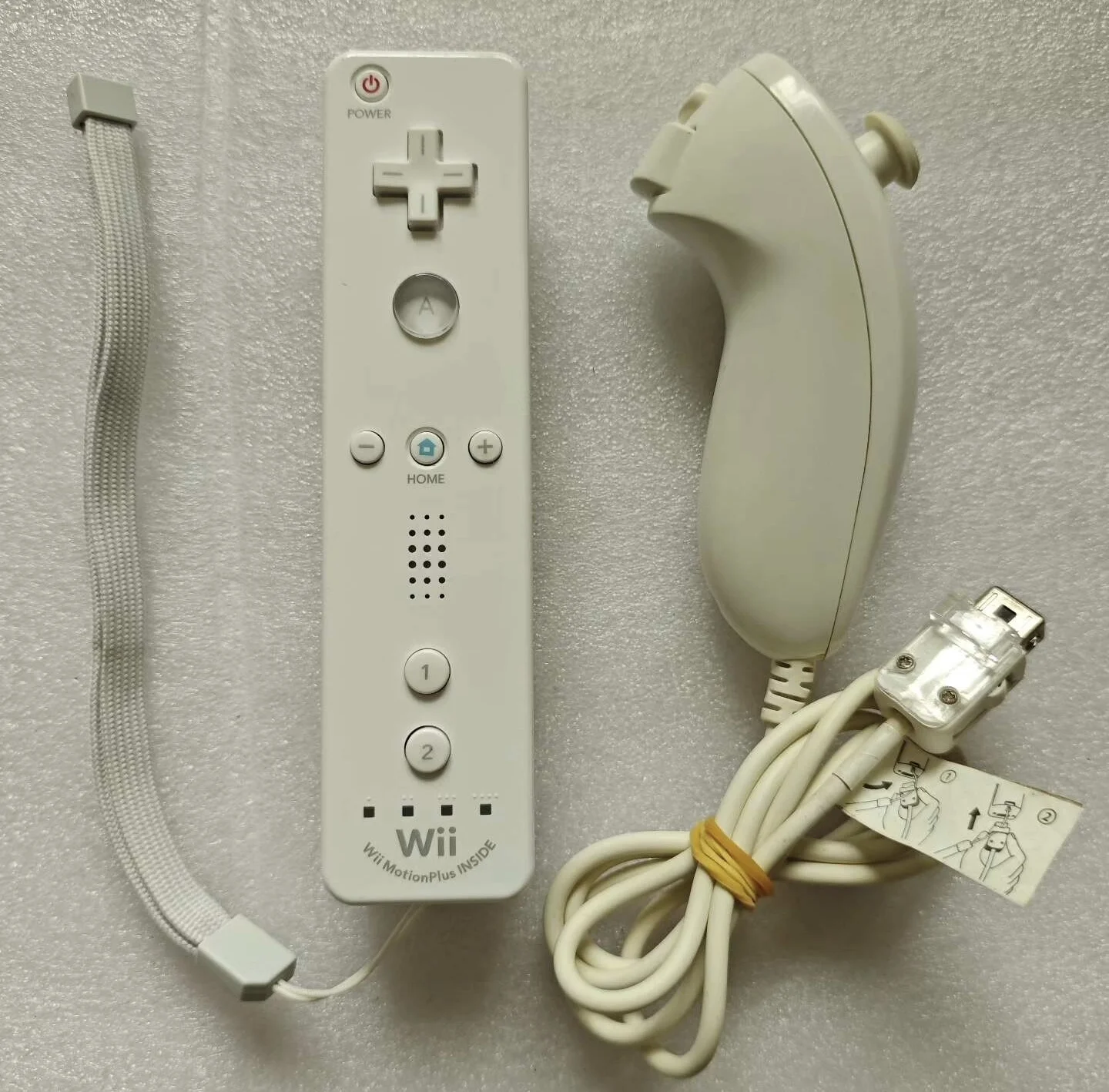
Wii Nunchuk Overall Appearance
Overview
Wii Nunchuk shells can develop wear, cracks, discoloration, or damage after extended use. Replacing the shell not only restores the Nunchuk's appearance but also improves grip feel and user experience. This guide provides detailed instructions for the complete Wii Nunchuk shell replacement process.
Nunchuk Shell Design Features
Ergonomic Design
- Curved Grip: Designed to fit hand contours
- Anti-slip Texture: Surface texture provides good grip
- Compact Size: Small and lightweight, easy to carry
- Connector Protection: Special protection design for connector area
Shell Material and Structure
- ABS Plastic: Durable but may yellow over time
- Two-tone Design: Most versions are white body with gray details
- Special Screws: Uses tri-wing (Y-type) security screws
- Internal Clips: Precision clip fastening structure
Shell Damage Types
Common Issues
- Surface Wear: Texture wear from long-term use
- Yellowing: UV exposure or chemical effects
- Cracks/Breaks: Physical damage from drops or excessive force
- Clip Breakage: Multiple disassemblies or improper handling
- Stripped Screw Holes: Thread damage preventing secure fastening
Special Issues (Nunchuk Specific)
- Connector Area Damage: Wear from frequent plugging/unplugging
- Grip Texture Wear: Surface changes from sweat and friction
- Label Wear: Damage to serial numbers or certification labels
Replacement Timing Decision
✅ Recommended Replacement: - Shell cracks affecting structural integrity - Severe discoloration affecting appearance - Clip damage causing shell looseness - Planning Nunchuk custom modifications - Severe connector area wear
❌ Not Recommended: - Minor surface scratches or usage marks - Even natural aging discoloration - Only internal functions need repair - Original shell in good condition with collector value
Required Materials and Tools
New Shell Selection
- Original Used Shell: Best choice, perfect compatibility
- Third-party Compatible Shell: Lower cost, varying quality
- Clear Shell: Popular choice to show internal structure
- Colored Shell: Personalized customization option
- 3D Printed Shell: Fully custom design
Essential Tools
- Tri-wing screwdriver (Y-type, essential)
- Phillips screwdriver (#00)
- Plastic spudger set (various sizes)
- Tweezers (precision type)
- Parts organizer (with compartments)
Auxiliary Materials
- Isopropyl alcohol (for cleaning)
- Lint-free cloth
- Label stickers (for marking screws and parts)
- Phone or camera (to document disassembly)
Safety Precautions
⚠️ Important Warnings 1. Nunchuk has compact, precise structure—requires patient handling 2. Must use correct tri-wing screwdriver to avoid damaging screws 3. Be careful with internal flexible circuit boards and connectors 4. Document each disassembly step, use photos for reference 5. Safely store all tiny components
Complete Disassembly Process
Phase 1: Initial Disassembly
Step 1: Special Screw Removal
- Prepare correct tri-wing screwdriver (Y-type)
- Locate all shell screws (typically 4-6)
- Note screws may have different lengths
- Store screws by position and label them
Step 2: Shell Separation
- Start separation from connector end
- Carefully insert plastic spudger into seam
- Gradually release all clips around perimeter
- Note internal precision clips—avoid excessive force
Phase 2: Internal Component Transfer
Step 3: Motherboard Removal
- Disconnect all internal connections:
- Analog stick connector (if present)
- Button wiring (if present)
- Other internal connections
- Carefully remove motherboard
- Note motherboard orientation and installation position
Step 4: Button Component Transfer
- Remove C-button and Z-button components
- Note microswitches and springs
- Check button component integrity
- Prepare for transfer to new shell
Step 5: Analog Stick Module Handling
- Analog stick is typically soldered to motherboard
- Check analog stick condition and function
- Clean area around analog stick
- Prepare for complete transfer
Step 6: Connector Handling
- Check connector condition
- Clean connector pins
- Test connector function
- Prepare for installation to new shell
Phase 3: New Shell Preparation
Step 7: Shell Inspection
- Check all clips on new shell are intact
- Test screw hole threads are normal
- Check shell surface for defects or deformation
- Compare dimensions and structure with original shell
Step 8: Shell Cleaning
- Clean all internal surfaces with isopropyl alcohol
- Remove mold release agents from manufacturing
- Clean all screw holes and clip slots
- Check and remove injection molding flash or burrs
Assembly to New Shell
Step 9: Internal Component Installation
Connector Installation
- Install connector to new shell
- Ensure correct installation position
- Test connector is securely fastened
- Check connector alignment
Motherboard Installation
- Place motherboard into new shell
- Align all mounting points and positioning posts
- Connect all internal connectors
- Ensure motherboard lies flat without bending
Button Component Installation
- Install C-button microswitch and structure
- Install Z-button trigger structure and spring
- Test button mechanical function
- Ensure all components are correctly positioned
Analog Stick Handling
- Analog stick installs with motherboard
- Check analog stick clearance space
- Test analog stick function
- Ensure no interference issues
Step 10: Shell Closure
Alignment Techniques
- First align connector area
- Ensure all internal cable positions are correct
- Close from one end to the other gradually
- Listen for crisp clicks as all clips engage
Screw Installation
- Start by hand-tightening tri-wing screws a few turns
- Gradually tighten in diagonal pattern
- Avoid excessive force causing stripped threads or plastic cracking
- Check shell gaps are even and consistent
Function Testing and Calibration
Basic Function Testing
- Connection Test:
- Connect Nunchuk to Wii Remote
- Connect Wii Remote to console
-
Test console recognition and connection
-
Button Test:
- Test C-button single and rapid press response
- Test Z-button trigger function
-
Test simultaneous button presses
-
Analog Stick Test:
- Test analog stick full directional movement
- Test centering accuracy
- Test movement smoothness
In-game Testing
- Motion Game Testing:
- Test with "Wii Sports" boxing and tennis
- Check analog stick movement accuracy
-
Test button response speed
-
Platform Game Testing:
- Test with "Super Mario Galaxy" for movement and special actions
-
Check analog stick and button coordination
-
Adventure Game Testing:
- Test with "The Legend of Zelda: Twilight Princess" for aiming and menus
- Evaluate overall control feel
Feel and Ergonomics Testing
- Grip Comfort:
- Test grip curve comfort
- Check surface texture anti-slip effectiveness
-
Evaluate long-term use comfort
-
Button Feel:
- Test C-button press feel and travel
- Test Z-button trigger feel
-
Evaluate overall operation feedback
-
Balance Testing:
- Test Nunchuk weight distribution
- Check stability during operation
- Evaluate control feel in games
Common Issues and Solutions
Issue 1: Shell Doesn't Close Tightly or Has Uneven Gaps
Cause: Clips not fully aligned, internal component interference, shell deformation Solution: Reopen and check, ensure all clips align correctly, remove interfering components
Issue 2: Buttons Unresponsive or Respond Abnormally
Cause: Microswitches not installed properly, connectors not fully inserted, circuit issues Solution: Reinstall button system, check all connections, test circuits
Issue 3: Analog Stick Movement Restricted or Sticky
Cause: Internal shell interference, improper installation position, incomplete cleaning Solution: Check clearance around analog stick, reinstall, thoroughly clean
Issue 4: Connector Poor Contact
Cause: Connector improperly installed, bent pins, incomplete cleaning Solution: Reinstall connector, straighten pins, thoroughly clean
Custom Modification Suggestions
Appearance Customization
- Color Customization:
- Paint color change (requires professional equipment and skills)
- Vinyl wrap color change (relatively simple)
-
Purchase pre-painted shells
-
Clear Shells:
- Show internal electronic structure
- Can add LED lighting effects
-
Popular modification choice
-
Pattern Customization:
- Screen print or hydrographic patterns
- Sticker decoration
- Laser engraving
Function Enhancement
- Improved Grip:
- Add anti-slip silicone sleeve
- Improve grip shape
-
Add finger positioning grooves
-
Connector Reinforcement:
- Add connector protection
- Improve plug/unplug feel
-
Add locking mechanism
-
Additional Functions:
- Add LED indicators
- Add extra buttons (advanced modification)
- Wireless modification (very advanced)
Cost and Time Assessment
Cost Analysis
- Third-party compatible shell: ¥40-80
- Original used shell: ¥60-120
- Clear or custom shell: ¥80-150
- Tool cost: ¥50-100 (tri-wing screwdriver essential)
Time Estimate
- Experienced user: 30-60 minutes
- Beginner: 60-120 minutes
- Including testing and adjustments: Additional 20 minutes
Success Rate
- Simple replacement: 85%
- Including component repair: 75%
- Custom modifications: 65%
Maintenance and Care
Daily Maintenance
- Cleaning Care:
- Regularly clean shell surface
- Use dedicated plastic cleaner
-
Avoid corrosive chemicals
-
Usage Protection:
- Avoid drops and impacts
- Don't use excessive force
- Store properly after use
Storage Recommendations
- Environmental Control:
- Store in dry environment
- Avoid direct sunlight
-
Suitable temperature (15-25°C)
-
Physical Protection:
- Use dedicated protective case
- Avoid stacking heavy items
- Regularly check condition
Summary
Wii Nunchuk shell replacement is a medium-difficulty project requiring precise handling. By following this guide's steps, even beginners can successfully complete the replacement, giving the Nunchuk a fresh new look.
Key points: 1. Prepare correct tri-wing screwdriver (Y-type) 2. Understand Nunchuk's compact internal structure 3. Be patient and meticulous, document each disassembly step 4. Thoroughly test to ensure all functions work properly
After mastering this skill, you can not only repair damaged Nunchuks but also perform personalized customizations, making your Wii gaming experience more unique and comfortable.
Last Updated: March 1, 2026
Applicable Models: All Wii Original Nunchuks
Difficulty Level: Intermediate
Recommended Experience: Some electronics disassembly experience
Special Reminder: Must use tri-wing (Y-type) screwdriver—regular screwdrivers will damage screws